

Availability: Deep research is a Beta feature available on Enterprise plans. It is behind a feature flag. Contact Lightdash to enable it for your organization.
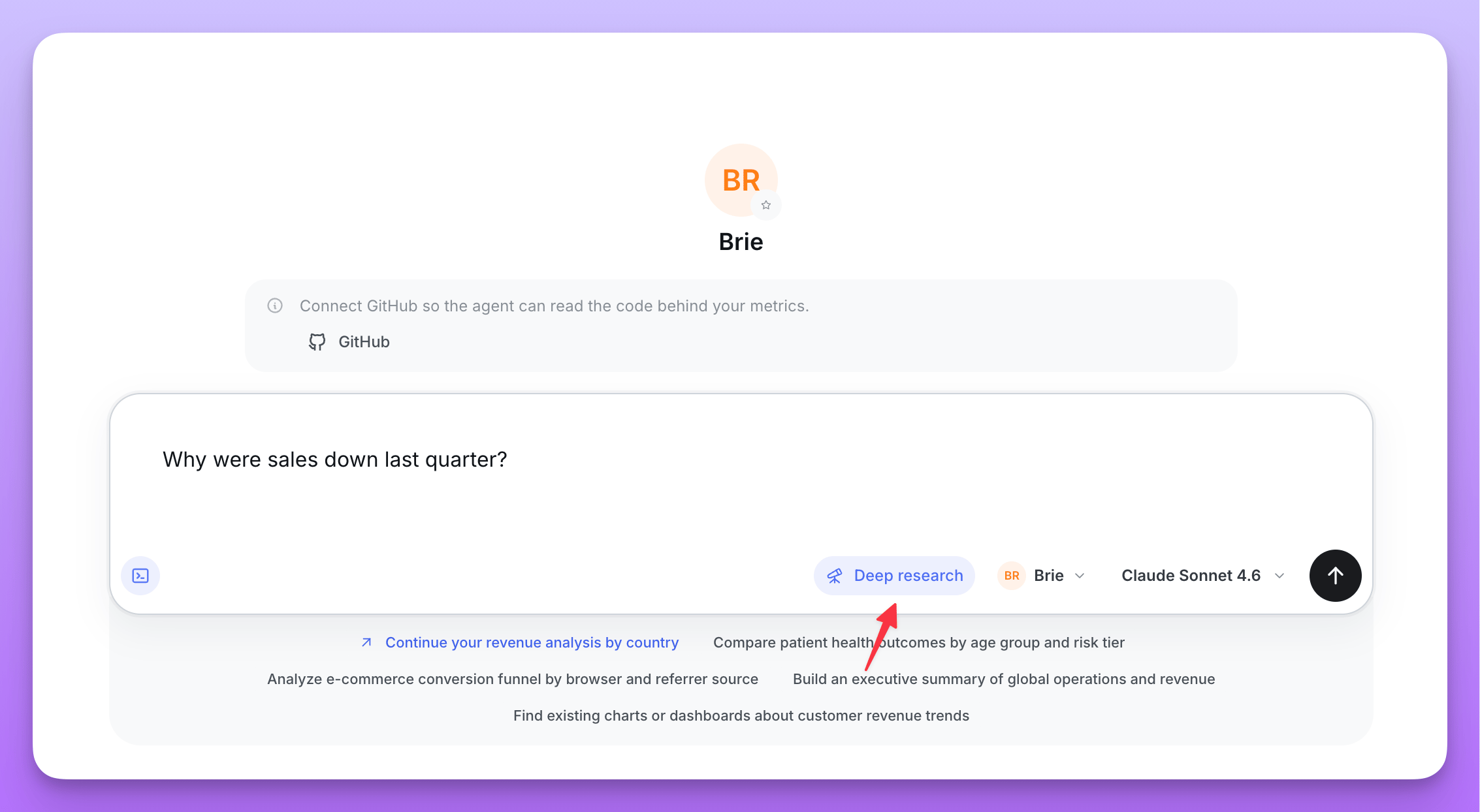
When to use deep research
Use deep research
Choose this mode for multi-step investigations that need cross-checking, several data cuts, or a report you can save and revisit.
Use Ask mode
Stay in the default mode for a quick lookup, one chart, or an interactive conversation where you want to steer each follow-up.
- “Which product categories are trending down this quarter, and what is driving the change?”
- “Why did returning-customer revenue fall over the last 90 days? Test the main explanations.”
- “Compare paid and organic acquisition quality across our top three regions.”
How it works
Deep research uses the selected AI agent’s configuration, including its instructions, semantic-layer access, knowledge documents, project and repository context, and enabled tools. It automatically inherits the organization’s research limits and every MCP server attached to the agent; there is no per-run depth or source selection. For each run, a coordinator owns the investigation: it gathers context, queries the data, and decides what to pursue next. When a question is genuinely separable it can hand that question to an isolated data worker, up to two per run. A worker sees only its own task and warehouse tools, and returns a compact findings packet rather than raw results. The coordinator does not write the report. When research ends, Lightdash rebuilds what the run established from the queries it actually ran and their results, and the report is written from that evidence. This keeps the report grounded in verified executions and means a run that stops early still reports what it found. Because the run executes on the server, you can close the tab or leave the thread. Reopening the thread restores the run card and its latest state.Start a run
1
Open Ask AI
Use the Ask AI composer on the homepage, start a new agent thread, or open an existing thread that you own. Deep research is unavailable in read-only threads, such as another user’s thread or a thread started in Slack.
2
Enable Deep research
Select Deep research in a new conversation, or select the telescope icon in an existing conversation. The control changes color when the mode is active.
3
Describe the outcome you need
Include the decision or question, relevant time period, important segments, and any definitions or constraints the agent should preserve.
4
Start the investigation
Submit the question. Lightdash saves it in the thread, creates a durable run, and begins processing it in the background.
Organization-wide limits
Organization admins set the safety limits inherited by every deep research run. Go to Organization settings → Ask AI → Deep research to configure:- Maximum steps — model steps the coordinator may take before it must finish
- Maximum tool calls — total tool calls across the coordinator and its workers
- Maximum warehouse queries — total semantic-layer and SQL queries across the run
- Time limit (ms) — wall-clock ceiling for the research phase
- Maximum tokens — total model tokens across the run
Sources and permissions
Deep research can use:- Agent context and project data — the semantic layer, saved Lightdash content, knowledge documents, and other context configured on the selected agent, subject to its data access settings.
- Warehouse queries — semantic queries and, when the agent and user are allowed to use it, SQL.
- Repository context — project context and source-code tools configured on the agent.
- MCP servers — every server attached to the agent and its enabled tools.
Follow progress
The run card stays next to the question that started it and shows the latest phase, elapsed time, warehouse-query count, finding count, and recent activity.Queued
Queued
Lightdash accepted the run and is waiting for a background worker to start it.
Running
Running
The agent is gathering context, querying the data, or writing the report. Select View activity to inspect recent progress.
Completed
Completed
The full report is ready and saved in the thread.
Partially completed
Partially completed
The run reached a resource limit or recoverable error. Lightdash still wrote the report from the evidence gathered before it stopped.
Failed
Failed
The run could not produce a valid report. The run card keeps completed activity and provides safe retry guidance.
Cancelled
Cancelled
The creator stopped the run before it finished.
Read the report
Select Open full report from a completed or partially completed run card. A report contains: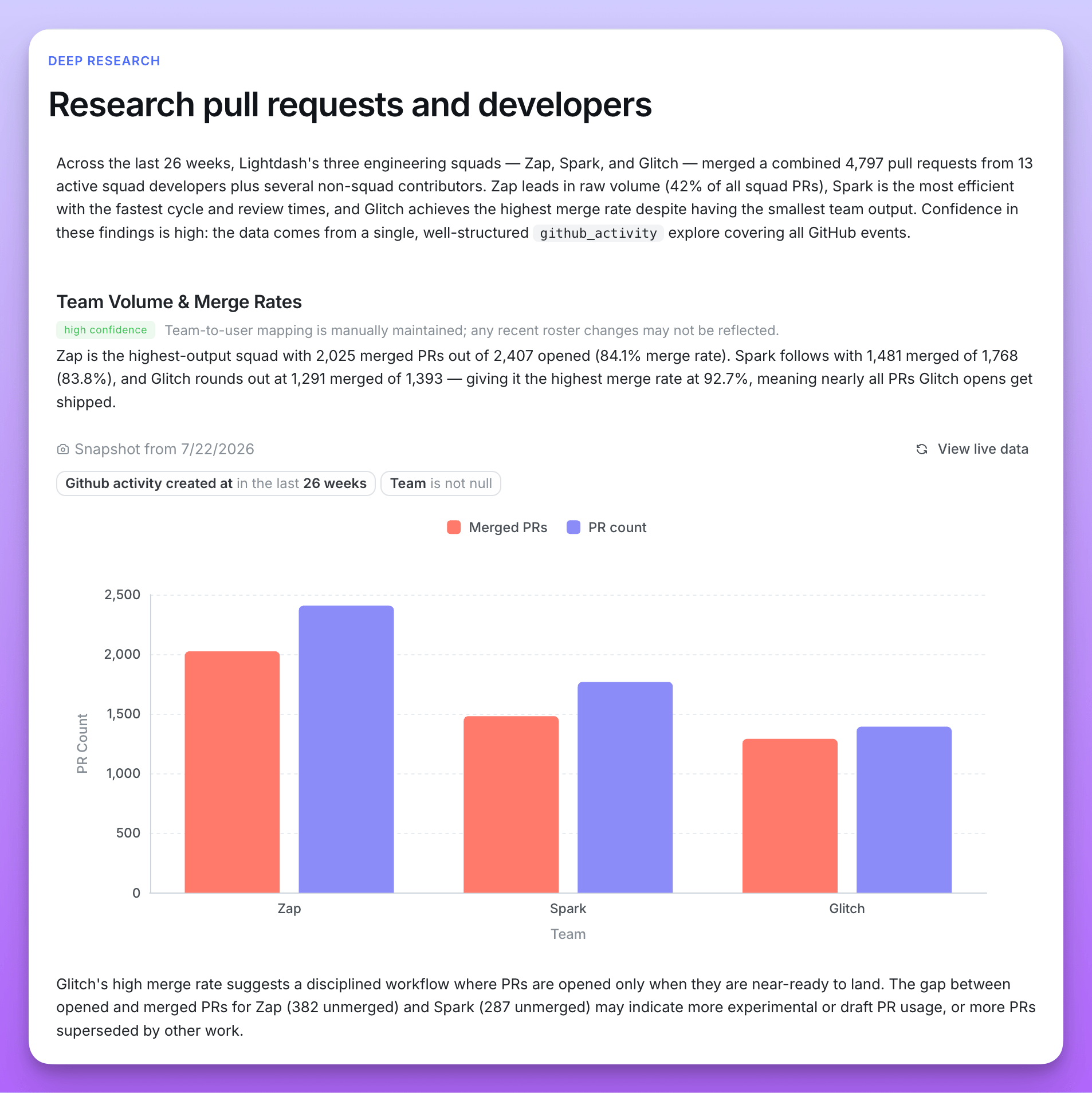
- A direct introduction that answers the question and states overall confidence
- Two to five connected finding sections, each with a low, medium, or high confidence level
- Charts, each backed by a query the run executed, when visual evidence improves the explanation
- Caveats where data coverage, freshness, or the semantic layer limits the conclusion
- A conclusion and citations for external evidence
Confidence reflects the evidence available to the agent, not a guarantee that the conclusion is correct. Review the definitions, assumptions, and supporting queries before making a high-impact decision.
Chart snapshots and live data
Warehouse-backed charts open on a snapshot of the data the agent used when it wrote the report. This preserves the original evidence even if the underlying data changes later. Every report chart is backed by one warehouse query the run actually executed, so any chart can be refreshed. Select Live data on a chart to rerun its stored query and compare the latest result with the snapshot.Report retention
Deep research report content and chart snapshots expire 30 days after the run completes. The run’s question, status, and completion date remain in the thread. After expiry, select Run again to start a new investigation from the original question using the agent’s current configuration and the organization’s current limits. The regular chat agent can use the status and report from deep research runs in the same conversation when answering follow-up questions. Ask it to clarify a finding, compare evidence, or explain a limitation without pasting the report back into the chat.Get better reports
- State the decision you are trying to make, not only the metric you want to inspect.
- Define ambiguous terms such as active customer, conversion, or retention.
- Include the time range and comparison period.
- Name segments the agent must test, such as channel, region, plan, or product category.
- Ask it to test alternatives or contradictions instead of assuming one cause.
- Treat a partially completed report as a starting point. Resolve unavailable sources or tighten the question before running it again; ask an organization admin to review the limits if runs repeatedly exhaust them.
Access requirements
Starting a run requires the Enterprise Start Deep Research runs scope (create:AiDeepResearch) for the project. Developer and Admin roles receive this scope by default. Add it explicitly to any custom role that should be allowed to start runs.
Users can only read, retry, or cancel their own deep research runs, and only within threads they are allowed to access.